· navigation · 2 min read
How to Import Custom Maps into Gaia GPS
Updated 12/2020 - Gaia GPS updated the custom map tool. The steps are essentially the same. This quick tutorial will show you how to install custom maps into Gaia GPS. While Gaia offers a wide…

Updated 12/2020 -
Gaia GPS updated the custom map tool. The steps are essentially the same.
This quick tutorial will show you how to install custom maps into Gaia GPS. While Gaia offers a wide variety of mapping options you may have some more specific needs. For this example, we show how to add Google maps to the app. Gaia GPS removed these map layers based on Googles Terms of Service but you as an individual can re-add them.
Ok, let’s get started! The entire process takes less than 5 minutes.
Prerequisite:
First, you will want to make sure you are logged into your Gaia GPS cloud account. So head to
(https://www.gaiagps.com) and log in.
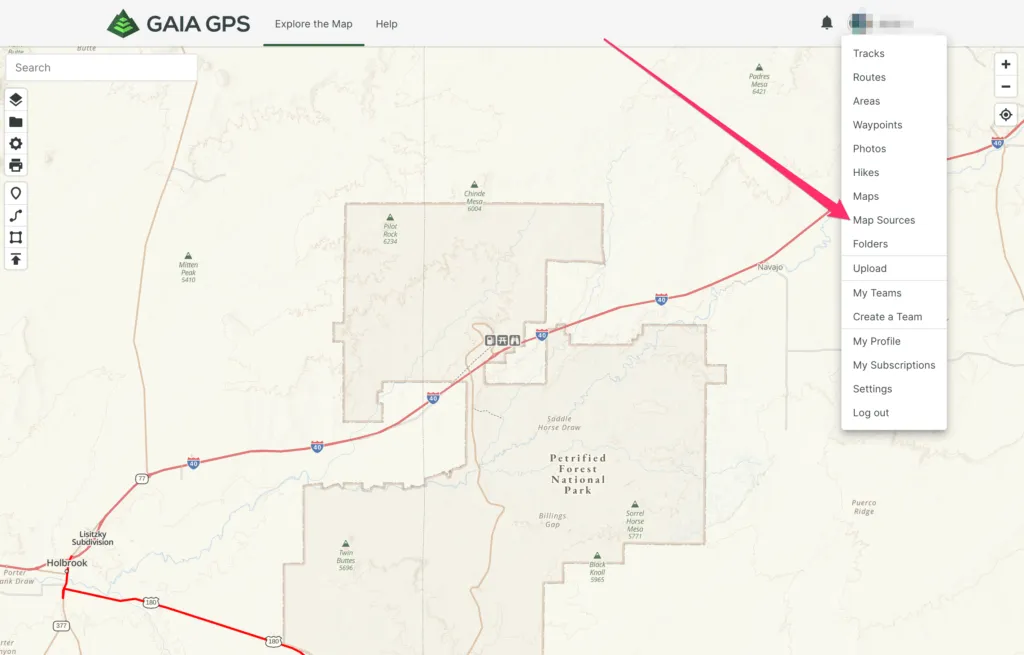
Once you are logged in click this link to add your custom map: Map Sources
You will now be presented with this screen: Select Import an External Map Source

The main dashboard will then appear.
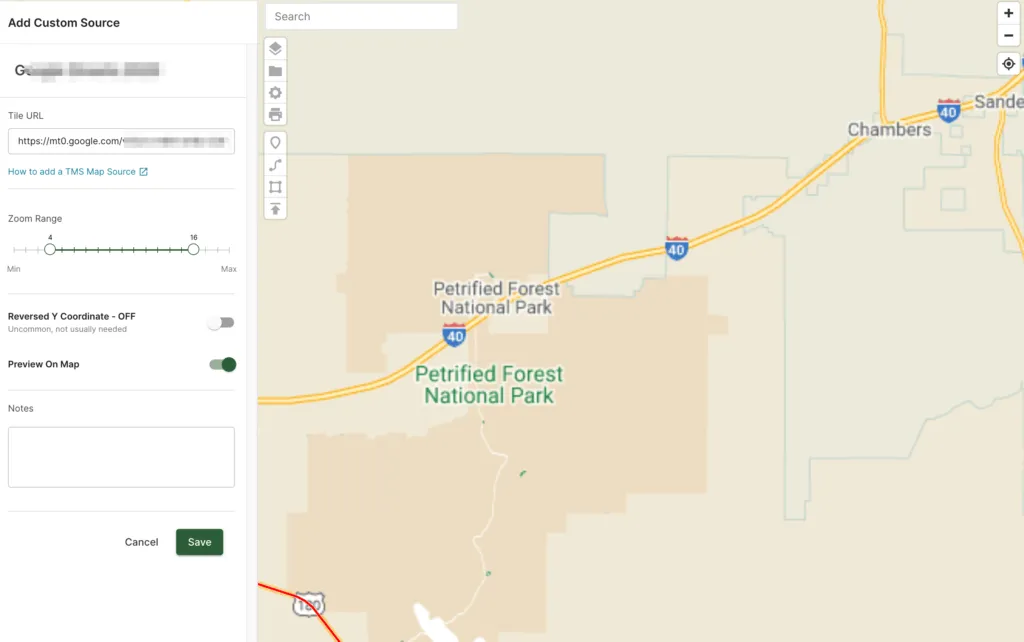
Steps:
Step One: Choose a name for your map import. It could be as simple as Google Roads.
Step Two: Paste in the following code depending on which map type you want. We have listed the 3 most common options.
Road: https://mt0.google.com/vt/lyrs=m&hl=en&x={x}&y={y}&z={z}&s=Ga
Hybrid: https://mt0.google.com/vt/lyrs=y&hl=en&x={x}&y={y}&z={z}&s=Ga
Terrain: https://mt0.google.com/vt/lyrs=p&hl=en&x={x}&y={y}&z={z}&s=Ga
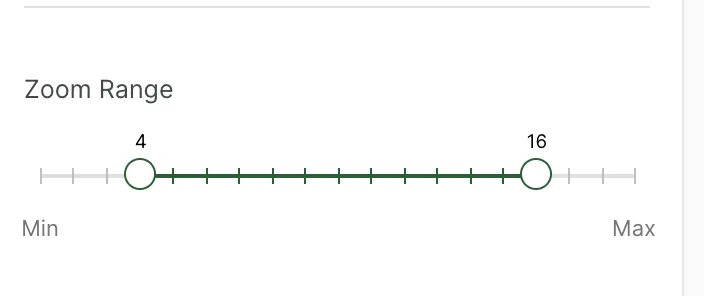
Step Three: Choose your zoom levels. We prefer 9 to 15
Step Four: Make sure you are happy with how the map appears on the preview screen. If everything looks good click “Add this map source” and you are done.
Final Step: Open up Gaia on your device, make sure you sync it and look for the new map layer from the available options.
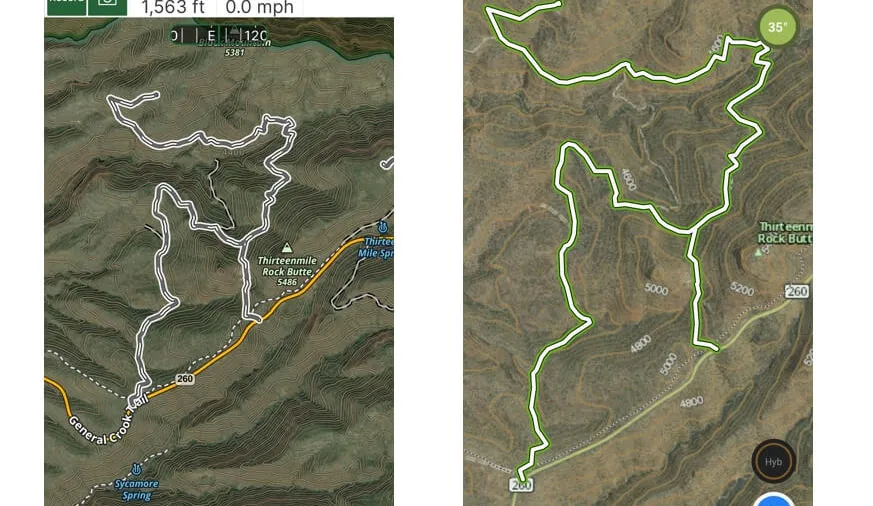
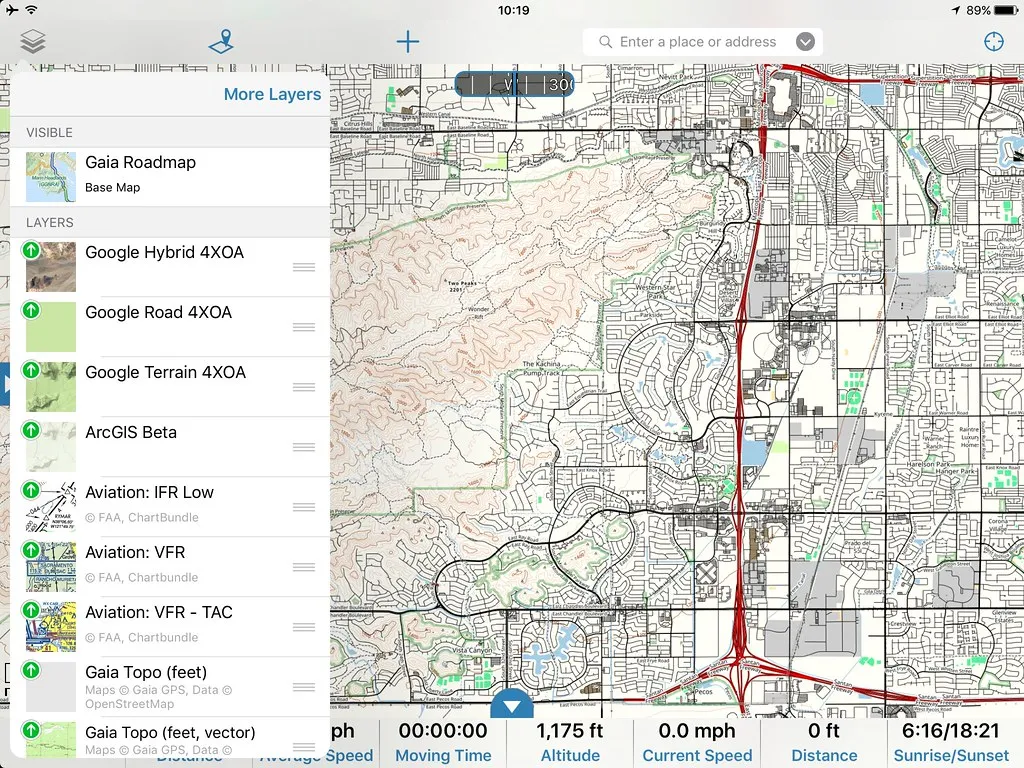 You can see our custom maps in this screenshot.
If you wish to add, modify, or delete any of your custom maps the page to do this can always be found via the drop down menu in your account. Simply choose the “Map Sources” option.